Build your first app
What you'll build
You will build a counter website that shows a number and gives you three buttons to change it. By the end you will have used every core piece of Drafter.
What you need
- Drafter installed and verified.
- About ten minutes.
Every step below shows the complete program so far. The demos on this page are live: you can click them, edit them, and run them right here. To follow along on your own computer, copy a step's code into a Python file and run it; your site opens in the browser.
Step 0: Start the server
Here is the shortest possible Drafter program:
from drafter import *

start_server()
start_server() launches your site. We have not written any pages yet, so
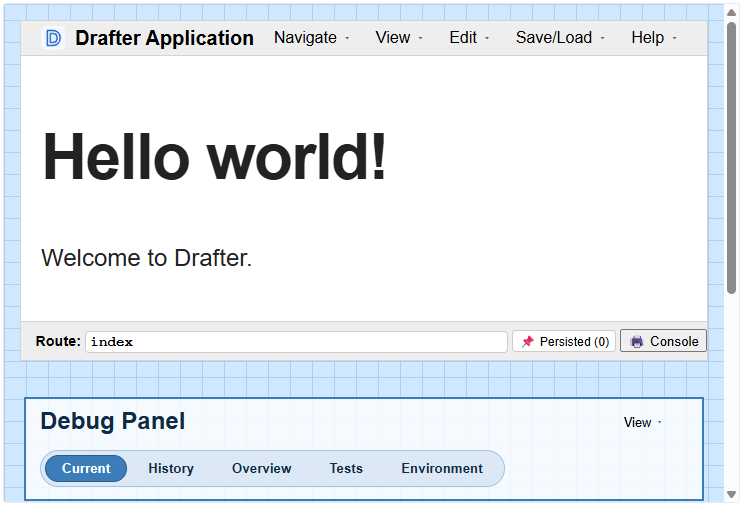
Drafter shows a default page to prove the server is up.
When you run this program in Thonny, you will also see the debug panel. The screenshot below shows what this looks like. The debug panel has many features, but you can ignore them for now.
Step 1: Add your main page
Every page in Drafter is created by a function. Marking a function with
@route tells Drafter that the function builds a page and
should be reachable in the browser. A function registered this way is
known as a route. The route named index is your site's main
route, and every Drafter site should have one.
from drafter import *


@route
def index() -> Page:
    return Page([
        "Hello from Drafter!"
    ])


start_server()
Three things to notice:
@routemarks the function as a route function of your site.indexis the name of the main route function.- The function returns a
Pageholding the content to show.
Step 2: Put more content on the page
The content of a Page is a list. Each item in the list appears on the
page, in order. For now the items are strings; soon they will include
buttons.
from drafter import *


@route
def index() -> Page:
    return Page([
        "This is a simple Drafter page.\n",
        "Each string in the list becomes text on the page.\n",
        "Items appear in the order you list them."
    ])


start_server()
Predict first: if you swap the first two strings in the list, what will the page look like? Try it in the demo above.
Question
The order of the strings in the list determines the order they appear on the page.
Step 3: Give the app something to remember
Our goal is to make a counter, which needs to remember a number. In Drafter, everything your app
remembers lives in one dataclass, which we always call State.
from drafter import *
from dataclasses import dataclass


@dataclass
class State:
    count: int


@route
def index(state: State) -> Page:
    return Page(state, [
        "Current count: " + str(state.count)
    ])


start_server(State(0))
Follow the number 0 through the program:
State(0)creates the starting data, withcountset to0.start_server(State(0))hands that starting data to your site.indexreceives it asstate, and showsstate.counton the page.
Notice the two changes from Step 2: index now takes state as its first
parameter, and Page(state, [...]) now carries the state along with the
content.
Step 4: Change the starting value
Predict first: what will the page show if you change the last line to
start_server(State(10))?
from drafter import *
from dataclasses import dataclass


@dataclass
class State:
    count: int


@route
def index(state: State) -> Page:
    return Page(state, [
        "Current count: " + str(state.count)
    ])


start_server(State(10))
The counter starts at 10. The starting value you pass to
start_server(...) is where your app begins.
Step 5: Add buttons that change the number
Let's add a button so we can interact with the page.
A Button needs two things: the text on the button, and the route function
to run when it is clicked.
Button("+1", "increment")
This button shows +1 and runs the increment route when clicked.
Notice that we did not call the function directly, which would require parentheses. Instead, we gave its name as a string, and
Drafter calls the function for us when the button is clicked.
This delayed execution is essential to how Drafter works: the page is built and sent to the browser, and the function does not run until the user clicks the button.
Let's see how this looks in a complete program:
from drafter import *
from dataclasses import dataclass


@dataclass
class State:
    count: int


@route
def index(state: State) -> Page:
    return Page(state, [
        "Current count: " + str(state.count) + "\n",
        Button("+1", "increment"),
        Button("-1", "decrement"),
        Button("Reset", "reset_count")
    ])


@route
def increment(state: State) -> Page:
    state.count = state.count + 1
    return index(state)


@route
def decrement(state: State) -> Page:
    state.count = state.count - 1
    return index(state)


@route
def reset_count(state: State) -> Page:
    state.count = 0
    return index(state)


start_server(State(0))
Click the buttons in the demo and watch the number change. Here is the loop your app is running:
- The user clicks a button.
- The button's function runs. It changes
state.count. - That function returns
index(state), so the main page is shown again with the updated number.
Step 6: Prove it works with tests
You can check your pages without clicking anything, because routes are
ordinary functions you can call. Drafter's assert_ functions compare
what a page produced with what you expected, and report SUCCESS or
FAILURE.
from drafter import *
from dataclasses import dataclass


@dataclass
class State:
    count: int


@route
def index(state: State) -> Page:
    return Page(state, [
        "Current count: " + str(state.count) + "\n",
        Button("+1", "increment"),
        Button("Reset", "reset_count")
    ])


@route
def increment(state: State) -> Page:
    state.count = state.count + 1
    return index(state)


@route
def reset_count(state: State) -> Page:
    state.count = 0
    return index(state)


assert_state(increment(State(0)), State(1))
assert_state(reset_count(State(7)), State(0))
assert_has(index(State(3)), "Current count: 3")

start_server(State(0))
Read the first test aloud: calling increment on a state of 0 should
produce a state of 1. The tests run every time the program starts, before
the site opens. You will see where their results appear in the
next step.
For now, if you run this in Thonny, you will see the following appear in the console:
SUCCESS at line 31 (assert_state)
SUCCESS at line 32 (assert_state)
SUCCESS at line 33 (assert_has)
Common problems
- The page shows an error about
Pagecontent: the content must be a list, even for one item. WritePage(["Hello"]), notPage("Hello"). - The page shows a "points to non-existent page" error: the name in
Button("+1", "increment")must exactly match a route function you defined with@route. Check the spelling. - You changed
Stateand things broke: the fields inState(...)must match the dataclass definition.State(0)works becauseStatehas exactly one field. - Nothing happens after
start_server(...): that is normal.start_serverhands your program over to the site; lines after it do not run. Go check the site in your browser: the URL will be something like http://localhost:8000.
Name it
You have already used the ideas; here are their names, which the rest of the docs use:
- The functions marked with
@routeare routes. Each route returns a page of your site. See How Drafter works. - The dataclass that holds what your app remembers is its state. The buttons changed it, and the page displayed it.
- The
assert_lines are tests. They call routes like ordinary functions and check the results.
Make it yours
Before moving on, change the app so it is yours. In rough order of difficulty:
- Change the starting value to
State(5). - Add a
+5button (you will need a fourth route). - Stop the counter from going below zero (change
decrement). - Count something you care about, and change the page text to match.
Next steps
-
Next: Make one visible change
Practice the edit, save, reload loop, break the app on purpose, and read your first friendly error.