JavaScript in Drafter
Drafter allows you to include JavaScript code within your Drafter applications, although this is not the preferred way to build Drafter sites. There are also some limitations when it comes to deploying Drafter sites with JavaScript.
In local development, you can actually just include JavaScript code by embedding <script> tags
within the HTML strings that you return from your Drafter routes. Unfortunately, when you deploy this,
you will find that it does not work. This is because of how Drafter works when deployed via GitHub Actions;
the JavaScript code is rendered just as text.
To properly include JavaScript in your deployed Drafter site, you have to take advantage of the js keyword of the Page class. You can provide either a string or a list of strings that contain JavaScript code, and Drafter will include this code in the rendered HTML of your site and execute it correctly. In the example below, we use the f-string feature to embed a Python variable’s value in the JavaScript alert:
from drafter import *

@route
def index(state: str) -> Page:
    return Page(state, [
            Text(f"Hello world! Message is {state}"),
        ],
        js=f"""
            alert("This is an alert from JavaScript! Message is: {state}");
        """
    )

start_server("Hello world!")
Errors
One other major limitation of using JavaScript is that the code will be executed in the global scope, which has some implications. In particular, you cannot define functions or variables that are scoped to a particular route or page; everything will be global. This means that you have to be careful about naming conflicts and variable/function collisions.
Observe the following code:
from drafter import *

@route
def index() -> Page:
    return Page([
        Text("This page works fine."),
        Button("Next", "another_page")
    ],
    js="""
        let counter = 0;
        alert("Counter is " + counter);
    """)

@route
def another_page() -> Page:
    return Page([
        Text("This page will have an error in the JS console.")
    ],
    js="""
        let counter = 2;
        alert("Counter is " + counter);
    """)

start_server()
In this example, the JavaScript code in both routes defines a variable named counter.
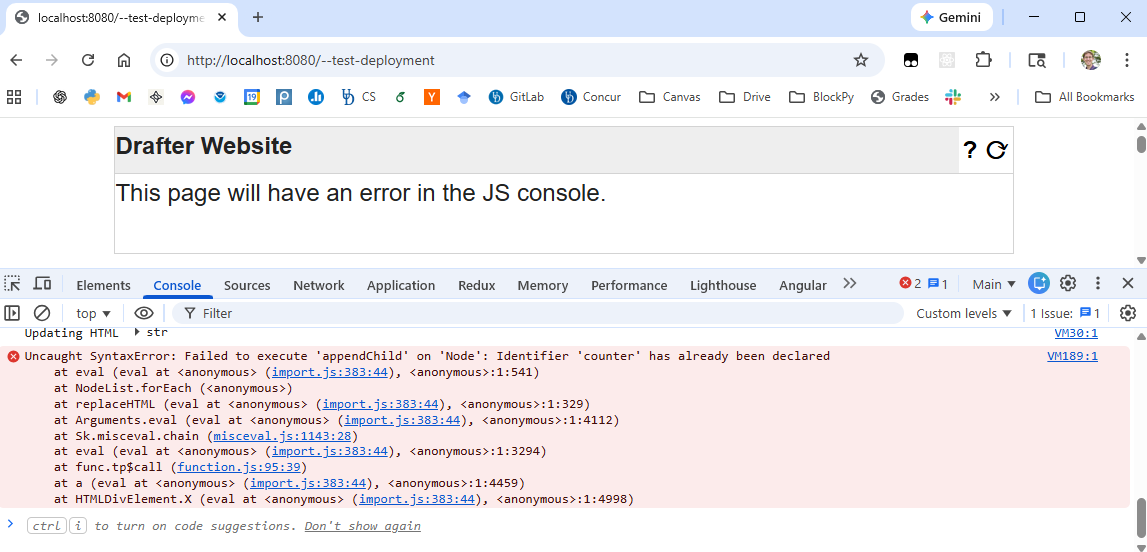
When you navigate to the another_page, you will see an error in the JavaScript console indicating that
the variable counter has already been declared. This is because both pieces of JavaScript code
are executed in the global scope, leading to a naming conflict.
You can find these kinds of errors by opening the browser’s developer tools and checking the console for error messages.
In Chrome, you can open the developer tools by pressing
Ctrl+Shift+I(orCmd+Option+Ion Mac) and navigating to the “Console” tab.In Firefox, you can open the developer tools by pressing
Ctrl+Shift+K(orCmd+Option+Kon Mac).In Edge, you can open the developer tools by pressing
F12and navigating to the “Console” tab.
The simplest solution is to always wrap your JavaScript code in an immediately-invoked function expression (IIFE), which creates a new scope for your code. For example:
@route
def another_page() -> Page:
    return Page([
        Text("This page will have an error in the JS console.")
    ],
    js="""
    (function() {
        let counter = 2;
        alert("Counter is " + counter);
    })();
    """)
Of course, if you are using an f-string to embed Python variables, you will need to adjust accordingly. Specifically, you are going to need to have double curly braces around the JavaScript code. For example:
js=f"""
(function() {{
    let counter = {some_python_variable};
    alert("Counter is " + counter);
}})();
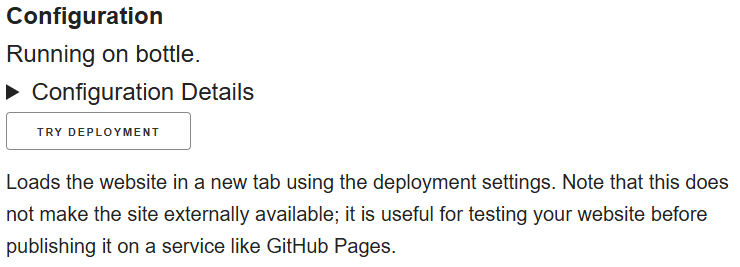
We strongly recommend using the Try Deployment button at the bottom of the Drafter debug panel, to
test your site in the deployed environment without having to push to GitHub every time.
Deployment vs Local Development
One other important caveat about using JavaScript in Drafter is that the page does reload every time
you navigate to a new route, but only in the local version. In the deployed version, Drafter loads
new pages without reloading the entire page. This means that any JavaScript
that relies on the page loading (e.g., window.onload events) will not work as expected in the
deployed version. Conversely, any JavaScript that was previously running locally will be terminated
when navigating to a new route in the local version.
We know this is confusing. We are working to improve it in Drafter V2. For now, just be aware of this difference when developing with JavaScript in Drafter.